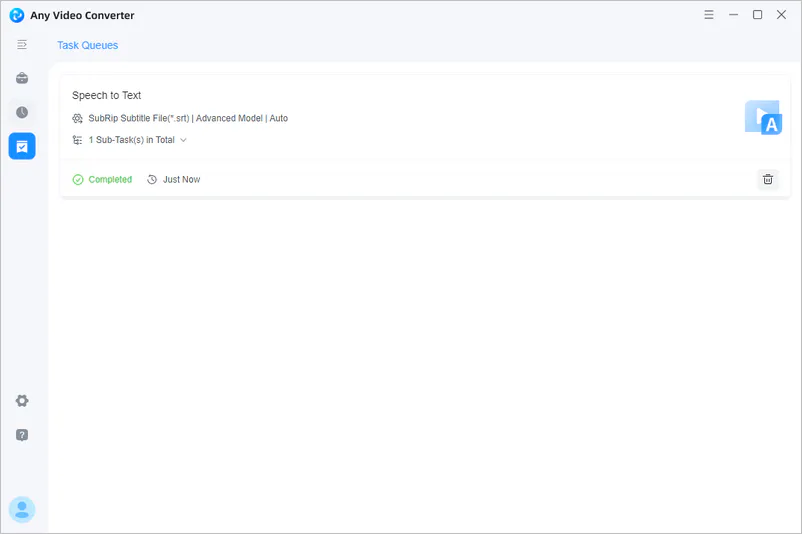
Transcribe Audio to Text with High Accuracy
Use this speech to text tool to automatically recognize speech in your videos or audios and convert them to multiple text files. This tool supports recognition and transcription of multiple languages, including Chinese, English, Japanese, German, Portuguese, etc. With its advanced AI technology, the transcription accuracy rate is as high as 99%. It is particularly suitable for organizing meeting content, learning materials, language learning, making subtitles, etc.


Convert Speech to Text at up to 99% Accuracy
Step 1 Launch Any Video Converter
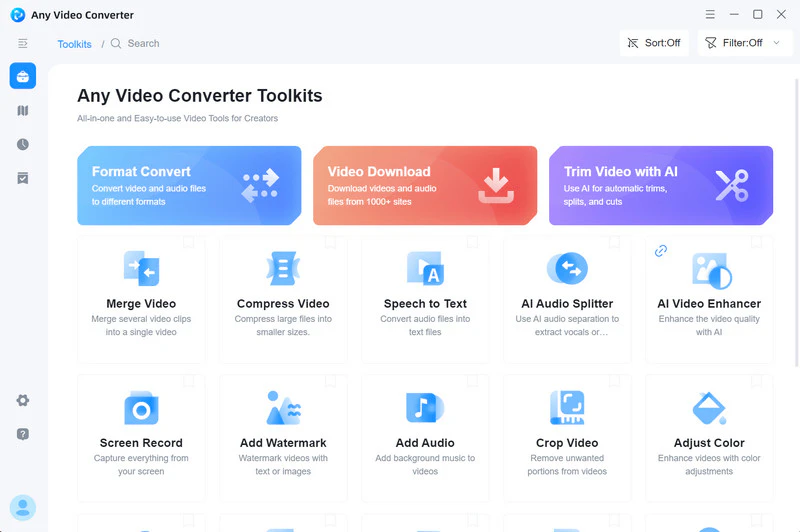
After downloading and installing Any Video Converter, choose the "Speech to Text" tool in the toolbar.
Step 2 Upload Your Video or Audio File
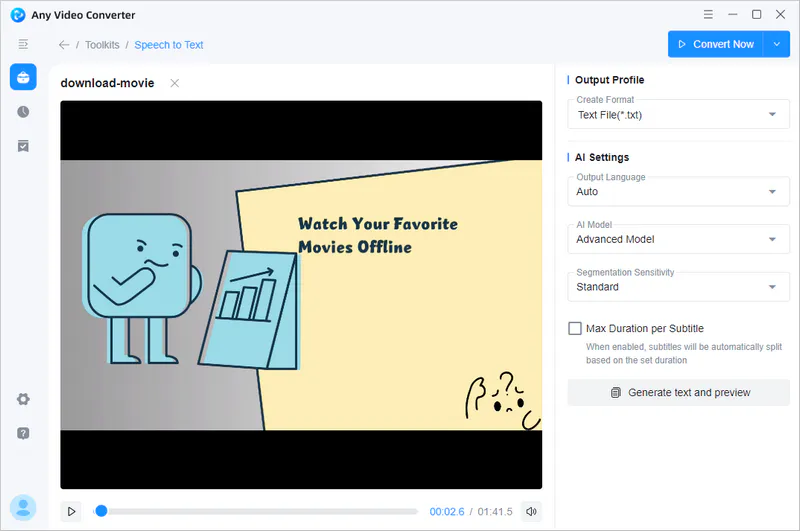
Click the "Add Media File(s)" button, or just drag and drop your video/audio to upload.
Step 3 Choose Output Format
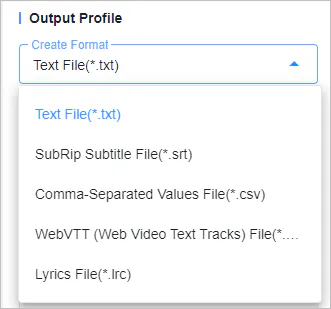
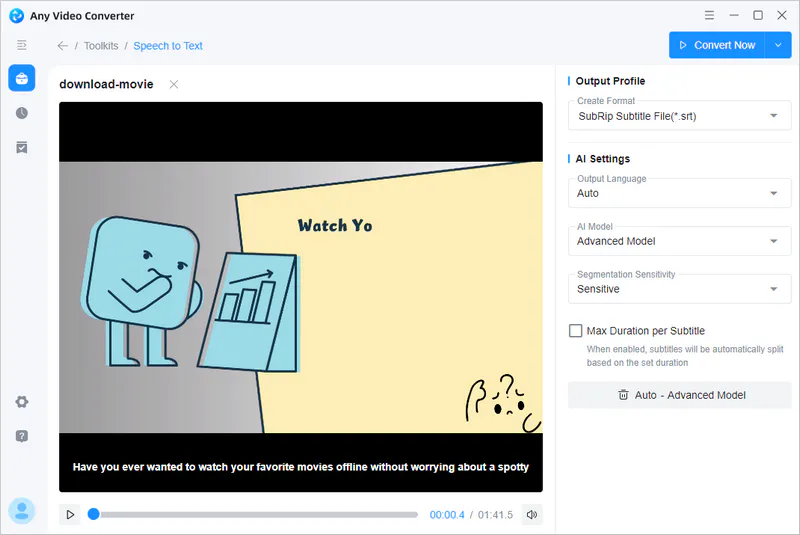
Currently, Any Video Converter supports five text formats, including TXT, SRT, CSV, VTT, and LRC.
Step 4 Configure AI Settings
Output Language: If your video/audio is in English, you can manually select English as the output language. This can help the program effectively improve conversion accuracy.
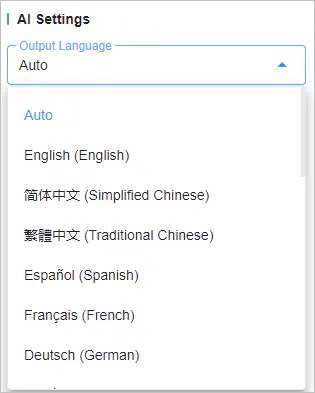
⚠️ Note: This tool does not have a translation feature. This means that if your video/audio is in English, it cannot be transcribed into German or other languages, only into English text.
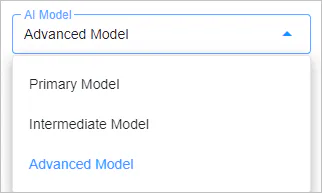
AI Model: It offers primary, intermediate, and advanced models. In an advanced model, its accuracy in transcribing speech pauses and timestamps will be higher. The subtle pauses in speech can be accurately captured, and the generated text will be accompanied by precisely corresponding timestamps.
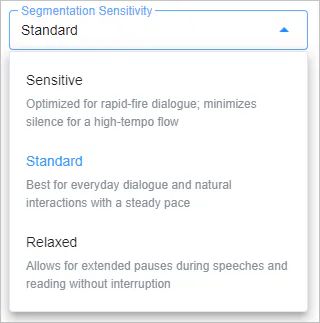
Segmentation Sensitivity: Sensitive, Standard, and Relaxed three modes are respectively suitable for extremely fast conversations, everyday dialogue, and speeches.
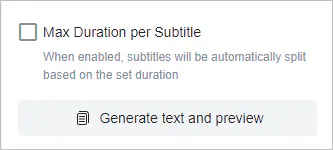
Max Duration per Subtitle: Enable this option if you need to limit the duration of each line of text. Enter the number of seconds (default 7s) in the input box, and the program will automatically segment the text according to that duration.
Step 5 Preview the Text
After all settings are completed, you can click the "Generate text and preview" button to check the text.
Step 6 Generate and Convert Speech to Text
If you are satisfied with the result, you can click the "Convert Now" button in the upper right corner to start converting the speech to text.