logo
Features User Guide FAQ Tech Spec
upscale video from 1080p to 4k

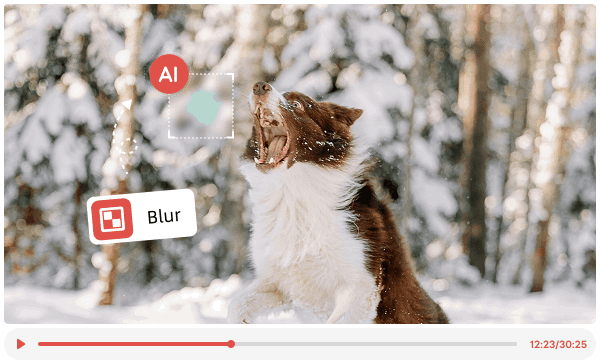
Blur Video Background: AI Tracks Subjects Frame-by-Frame with Pixel-Level Precision

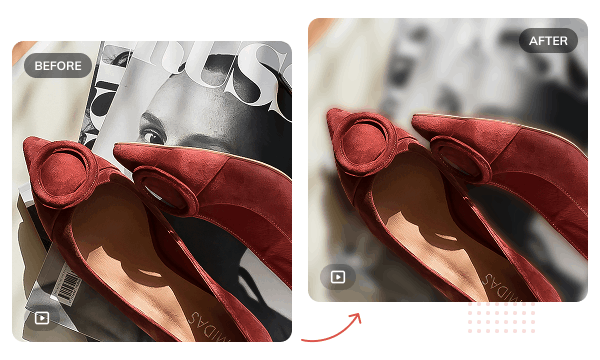
With advanced AI tech, AVCLabs Video Blur AI automatically detects and blurs video backgrounds while keeping main subjects clear and sharp. Unlike manual video background blurring, it intelligently tracks background changes without requiring frame-by-frame adjustments.

It is ideal for interviews, product showcases, and other scenarios where subject emphasis is needed. Its edge-processing technology ensures natural, artifact-free blurring, avoiding halos or jagged edges, etc.

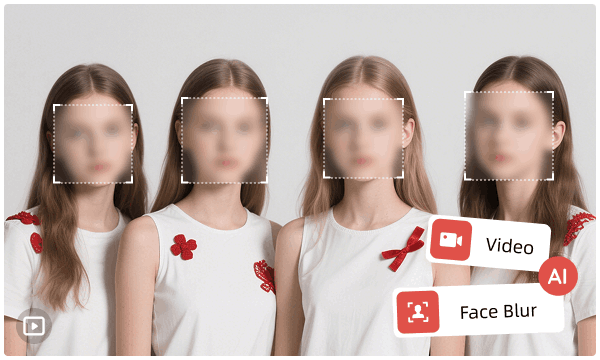
Blur Face in Video: Efficient Facial Blur with Over 99% Recognition Accuracy

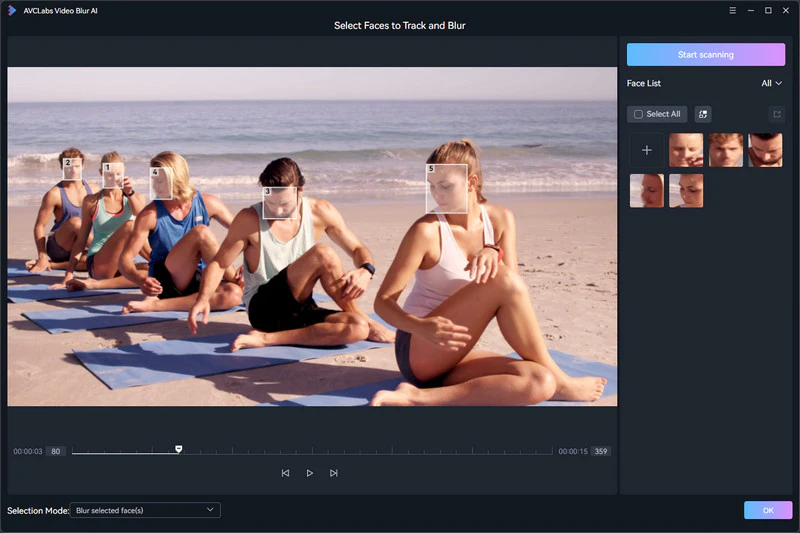
AVCLabs Video Blur AI automatically detects all faces in a video, and blur all faces or customize faces. You can customize blur intensity and styles to meet diverse privacy needs even in profile, obscured, or fast-moving scenarios.

You can also upload a reference photo of a specific person, and AVCLabs Video Blur AI will automatically recognize and track that face throughout the entire video — no manual selection needed frame by frame. Particularly suited for news interviews and other anonymization tasks, it boosts processing efficiency by over 99% compared to manual frame-by-frame editing.
enhance the video quality
enlarge video resolution

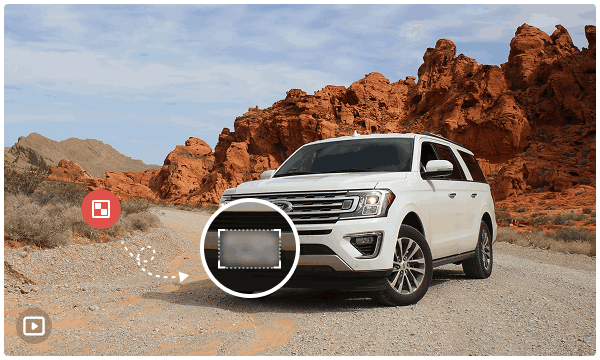
Blur License Plate: Accurately Blur License Plates Consistently & Stably

To address the specific needs of blurring license plates, AVCLabs Video Blur AI has developed a dedicated recognition model capable of accurately detecting license plates from various angles and under different lighting conditions. It automatically tracks the movement of vehicles to ensure stable blur effects throughout.

This is especially important for law enforcement footage and dashcam video processing, helping users comply with privacy regulations and avoid legal risks. Even for videos that need to be uploaded to YouTube, encoding the license plate in the video can enhance the security and privacy of the video.

Blur Part of Video: Multi-Zone Editing with Diverse Tools to Blur Anything Wanted

AVCLabs Video Blur AI offers intuitive selection tools that allow users to freely define any area they want to blur, such as logos, sensitive info, etc. Also, it supports dynamic tracking, automatically following the object's movement path instead of manual keyframe adjustments.

With its unique edge feathering technology, AVCLabs Video Blur AI blends blurred areas seamlessly into the video, delivering results on par with professional post-production.
power of ai and gpu
remove object from video

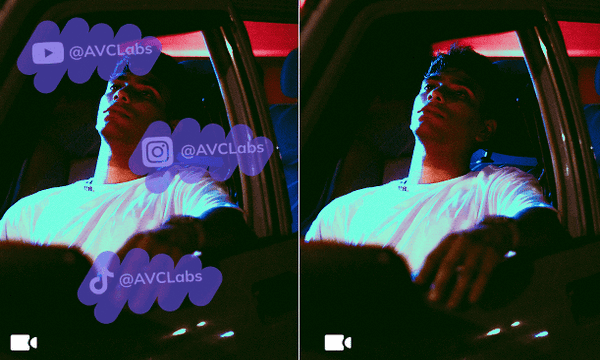
Remove Objects in Video: One-Click Erase Unwanted Elements

AVCLabs Video Blur AI doesn't just blur; it can completely remove distracting elements from your footage. Use Fixed Area Removal to erase static watermarks, timestamps, or logos, or switch to Smart Object Recognition to automatically detect and remove moving objects like pedestrians or passing vehicles.

This makes it a faster alternative to manual clone-stamp or masking work in traditional editors, especially for footage with multiple moving distractions across the frame.

Best Alternative to Blurring Video in Premiere: Drag-and-Drop AI Efficient Solution

Through AI-automated video blur technology, AVCLabs Video Blur AI helps those who are tired of complex manual and keyframe operations. Therefore, compared to professional editing tools like Premiere with frequent manual operations, AVCLabs Video Blur AI is more suitable for processing long videos, and the processing speed is at least 3-5 times faster.

Besides, AVCLabs Video Blur AI supports retaining the original video quality, avoiding the image quality compression caused by repeated rendering in traditional manual blurring.
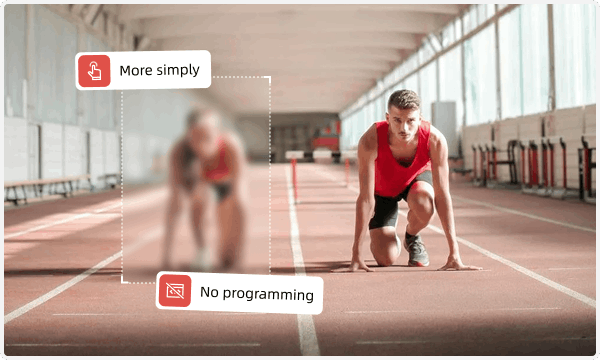

power of ai and gpu

Why Choose AVCLabs Video Blur AI

ai tracking and blurring
AI-tech Tracking and Blurring

Tracks moving subjects flawlessly to instantly detect faces, license plates, and objects with 5x faster rendering speed.

protect personal privacy
Perfect for Network-age Privacy

Borned for perfectly protected privacy, no tedious mask/keyframe is needed to blur any sensitive information.

optimization
Easy-to-Use Professional Tool

Provides intuitive interface for beginners and preserves original video quality with professional results.

How to Blur A Video with AVCLabs Video Blur AI

Step 1. Launch AVCLabs Video Blur AI

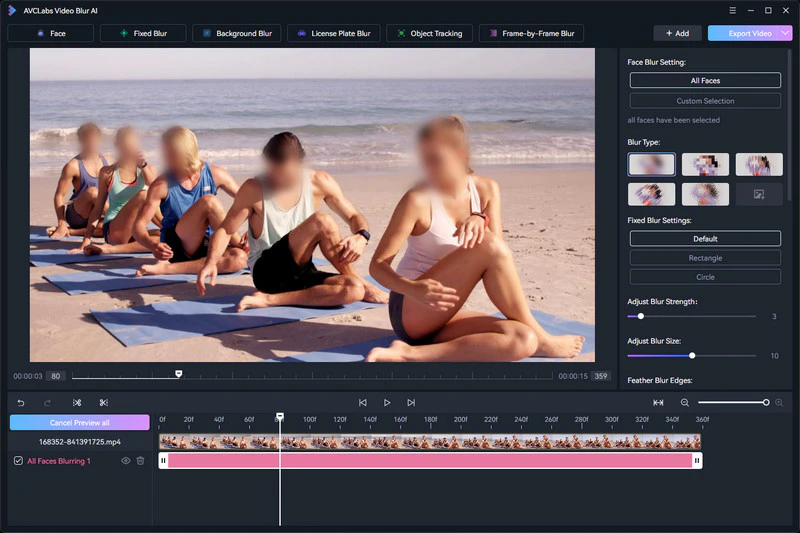
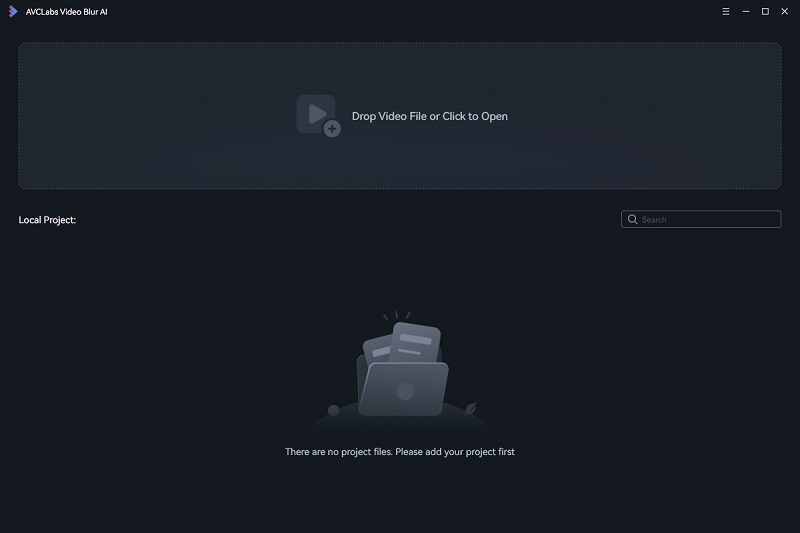
Launch AVCLabs Video Blur AI and you will enter the main window of the program shown as below.

Step 2. Import Video

Click the "Browse" button or drag and drop to import a video. Before blurring, you can then use its built-in video editor to edit the video.

Step 3. Select Your Blurring Mode

In the action bar at the top of the program, you can select Face /Fixed Blur /Background Blur /Lisense Plate Blur /Object Tracking.

Step 4. Adjust Other Settings

Select blur type and adjust blur strength in the in-built video editor. You can also set a specific start and end frame for each blur task, so only the exact segment you choose gets processed — no need to blur the entire clip.

Step 5. Preview & Export Blurred Video
Before processing the video, you can preview if the blurring effect fits your expectations.

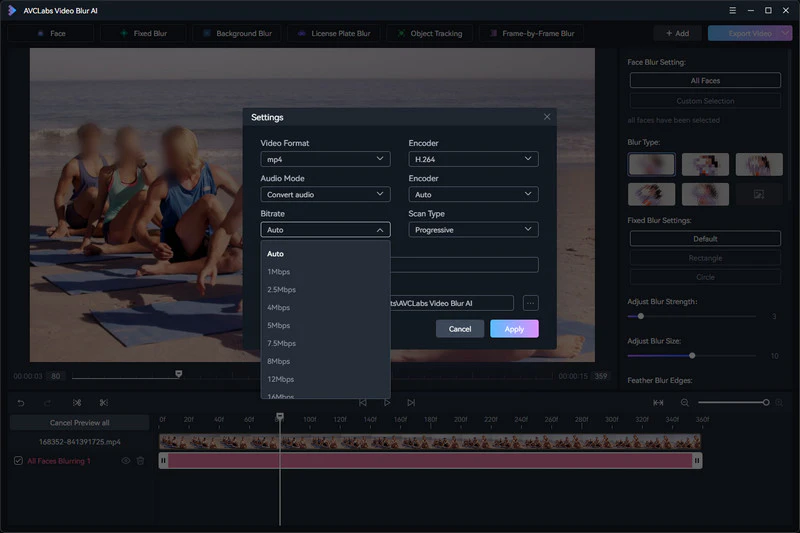
Then simply click the "Export" button located at the top right corner to start the export process for your video blur project.

View Full guide more

AVCLabs Video Blur AI

Best Blur Video AI Tool to Blur or Remove Objects in Video Footage Automatically

Frequently Asked Questions about AVCLabs Video Blur AI

1. How do I add blur to the video?

Powered by adding blur effects to videos is quick and easy with AVCLabs Video Blur AI. First, import your video in AVCLabs Video Blur AI. Then, adjust blur type & blur settings. Last, you can preview & export the blurred video.

2. Is there an easier way to blur faces?

With AVCLabs Video Blur AI, you can effectively blur faces in seconds. No more frame-by-frame blurring in manual editing tools like Premiere. All you need to do is to wait for the auto face detection and blurring, then to manual selection if need to blur selective faces. Finally, start processing with its motion tracking.

3. How to blur something in video?

With AVCLabs Video Blur AI, you can blur faces, license plates, people, or moving objects in videos automatically! This is a way faster than Premiere Pro to blur anything you want in videos with no quality loss.

4. How to blur the background in a video?

Open AVCLabs Video Blur AI and select its mode. Then, you just need to adjust its blur strength and edge refinement. After clicking Export, you can get a background-blurred video with no effort.

5. How to blur part of a video?

It is well known that AI-coded video editors can save a lot of work. However, AVCLabs Video Blur AI stands out from many similar tools because it allows you to freely edit and decode anywhere and any moving objects.

6. How to blur license plate in video?

With AVCLabs Video Blur AI, you can blur the license plate of the entire video in three steps. And no matter which direction the license plate moves or because of blurriness, it can make your license plate blur very stable and tight.

7. How to blur videos on CapCut?

In CapCut, you need to add a blur effect after importing the video, and then add a mask, which requires you to manually add keyframes. Therefore, this tool is not suitable for blurring multiple faces or objects. At the same time, when blurring moving objects with CapCut, the blurring effect is still unstable after adding many keyframes. In addition, professional editing skills are required to obtain high-quality stable background blurring in CapCut.

Therefore, AVCLabs Video Blur AI is recommended to complete the task of video blurring because it supports automatic recognition of faces, moving objects, license plates and backgrounds. Not only that, it loads very quickly. Even if you don’t have professional editing experience, you can get professional blurring video effects.

8. Is there a free trial, and what are its limits?

Yes. The free trial of AVCLabs Video Blur AI lets you process up to 3 video files with all AI blur and removal features unlocked, though exported videos will include a watermark. Purchase a license to remove the watermark and unlock unlimited processing.

9. Does it support 360-degree videos?

AVCLabs Video Blur AI supports importing 360-degree video for editing, but exporting back to 360-degree format is not currently available. This is on the roadmap for a future update.

10. Can I preview the removal effect before exporting?

Yes. As soon as you add an object removal task, the program automatically switches to preview mode so you can instantly check the result. You can also click the "Preview all" button next to a specific task to preview it individually before exporting the final video.

Other Users Are Also Downloading

video enhancer aiAVCLabs Video Enhancer AI

The best video enhancer to boost video quality miraculously to bring your old footage a stunningly new look with AI!

photo enhnacer aiAVCLabs PhotoPro AI

Easy-to-use AI photo editor with quick selection tools and a range of dedicated AI tools that make complex photo editing easier than ever.