Quick Answer: Which YouTube Downloader Extensions Still Work?
It is not easy to find working YouTube downloader extensions for Chrome or Edge; many either no longer work or do not support YouTube. By contrast, it is easier to find a working option for Firefox.
In my latest test (August 31, 2026), Tubly and Addoncrop can still work for Chrome and Edge, and I found that Downr Extension also works for Chrome, so this time I added it to the Chrome Downloader Extension supported list. While Easy YouTube Video Downloader Express remained the most practical Firefox option.
Browser extensions are more changeable than online downloaders, but are still better suited to occasional single-video downloads. So I only keep YouTube downloader extensions in this list if their installation source is still accessible and the extension can be tested during my latest review.
| YouTube Downloader Extensions |
Supported Browser |
Installation |
Test Result |
Highest Tested Quality |
MP3 |
Main Limitation |
| Tubly YouTube Downloader |
Chrome, Edge, Firefox, Opera, Brave |
Manual extraction and installation |
Passed on August 31, 2026 |
1080p and 2K for free; 4K paid |
Supported |
Daily limits and manual setup |
| Addoncrop |
Chrome, Edge, Opera, Brave, yandex |
Requires CRX Emulator and allows permissions |
Passed on August 31, 2026 |
1080p |
Supported, but sometimes it stops working |
Video downloads may be slow, and MP3 downloads may stop working |
| Downr |
Chrome |
Requires CRX launch |
Passed on August 31, 2026 |
4K |
Supported |
4-hour video length limit |
| Easy YouTube Video Downloader Express |
Firefox |
Firefox Add-ons Store |
Passed on August 31, 2026 |
MKV in 4K |
Supported |
Some formats or qualities may require payment |
Best YouTube Download Extensions for Chrome
Chrome is the most searched browser for YouTube downloader extensions, but it is also the most restricted. Many Chrome Web Store video downloaders do not support YouTube directly, so the working options below may require manual installation or third-party extension files.
After a fresh round of research and hands-on testing, I found that several Chrome video downloader extensions that had stopped working are now usable again. That said, some still do not work properly with YouTube, which is why I added a new working extension to this list.
I also found that some popular options, including Bulk Media Downloader and Video Hunter Downloader, were unable to detect YouTube video playback correctly during testing, so they were excluded from the list.
Tubly Downloader Chrome Extension
Tubly YouTube Downloader is a good option for free 1080p and 2K YouTube downloads, especially since it processes videos faster than Addoncrop in actual use. However, 4K downloads and higher daily limits require a Premium account.
PROS👍
1. Can download YouTube videos in true 1080p and 4K quality.
2. Can extract audio and convert it to MP3.
3. Premium users can download private and member-only videos.
4. Faster download speed than some other extensions.
CONS👎
1. Installation is more complicated than most alternatives, since you need to download a ZIP file, extract it, and drag the extension file into Chrome manually.
2. Free accounts come with daily usage limits.
Best for: Users who need a YouTube 1080p downloader extension with higher-quality downloads, MP3 audio extraction, and support for private or member-only videos, and who do not mind a more manual installation process.
How to Download YouTube Videos in 1080p with a Chrome Downloader Extension
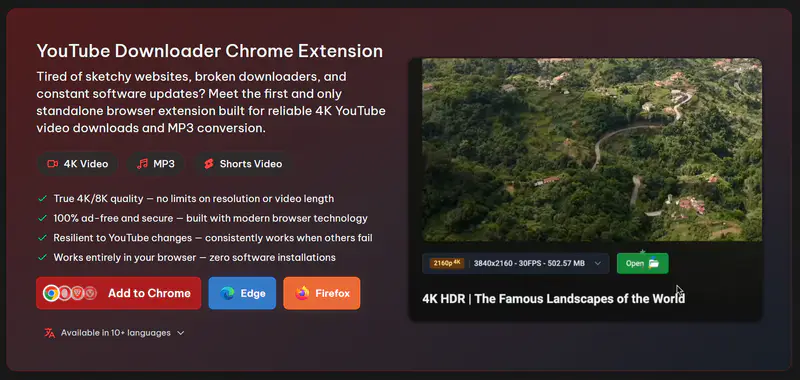
Step 1: Download the Tubly YouTube Downloader Chrome extension
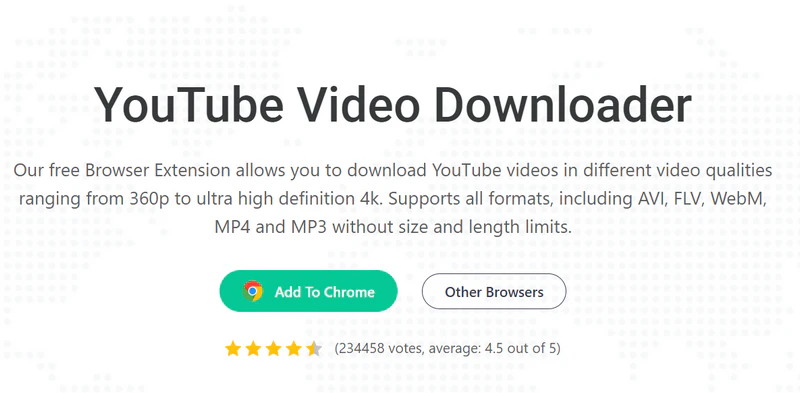
Go to the official Tubly YouTube Downloader website and click “Add to Chrome”. It is also available for Firefox and Edge.
A ZIP file will be downloaded automatically. Once the download is complete, locate the ZIP file and extract it to get the .crx extension file.
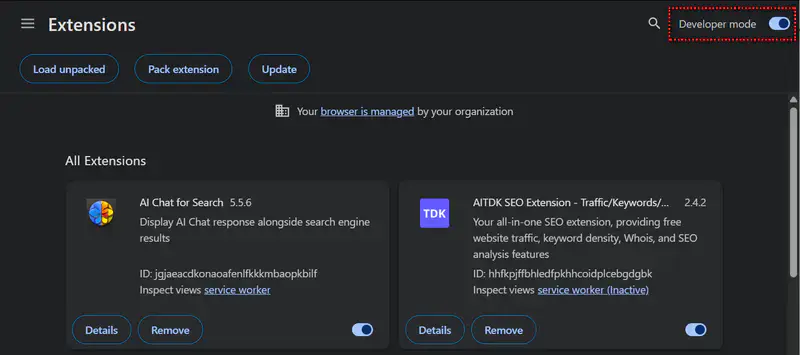
Step 2: Turn on Developer mode
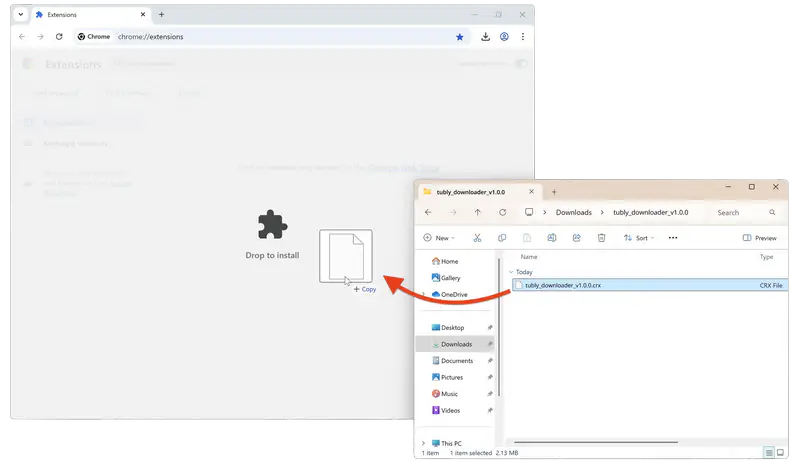
Open chrome://extensions/ in Chrome, then enable "Developer mode" in the top-right corner.
Step 3: Install the Tubly extension
Drag the extracted .crx file, not the ZIP file, onto the extensions page. When Chrome asks for confirmation, click “Add extension” to install.
Step 4: Download a YouTube video in 1080p for free
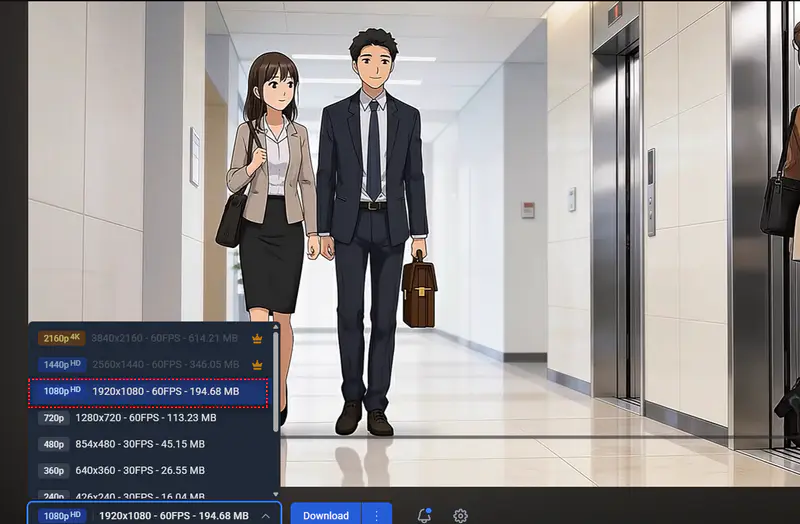
Open the YouTube video you want to save. In actual use, the download toolbar will appear at the bottom of the player.
Open the dropdown menu, choose 1080p as the resolution, then click the blue Download button next to it. Once the processing is finished, click the green Open button to locate the downloaded HD video.
Addoncrop YouTube Downloader
Addoncrop YouTube Downloader is a well-known extension that has been around for many years, offering users a reliable way to download YouTube videos. It continues to work and supports downloading videos, audio, subtitles, and thumbnails.
PROS👍
1. It is compatible with Chrome, Edge, Opera, Yandex, Brave, etc.
2. It supports converting YouTube to MP3.
3. It enables the downloading of audio, subtitles, and thumbnails.
CONS👎
1. The video download process might be slow or even get stuck.
2. The audio download may stop working.
Best for: Addoncrop YouTube Downloader is a good option to free download 1080p videos from YouTube.
How to Use Addoncrop as a YouTube to MP4 Downloader Add-on
Step 1: Install the Addoncrop extension on Chrome
Open Chrome and visit the Addoncrop extension site to get started, then click "Add to Chrome" and follow the directions to add the extension to your Chrome.
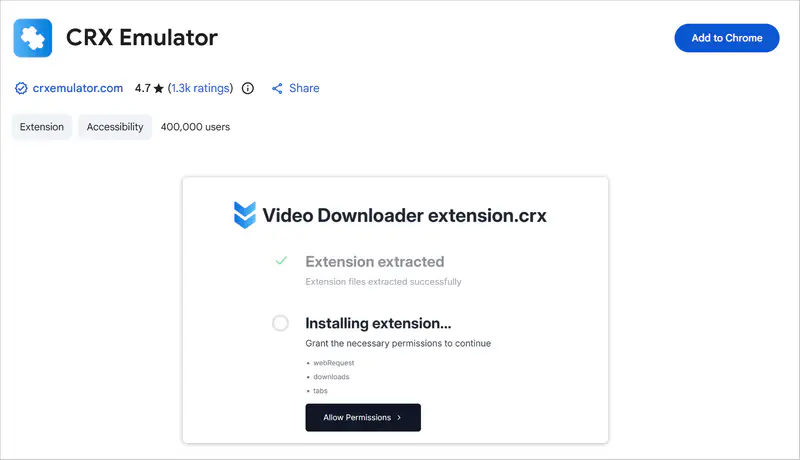
To make this Chrome extension work properly, you will be prompted to install another extension called "CRX Emulator". Click "Add to Chrome" to install it in Chrome. You may need to grant the permissions to continue.
Step 2: Play the YouTube video you want to download
Browse the video you want to download on YouTube and play it.
Step 3: Start downloading
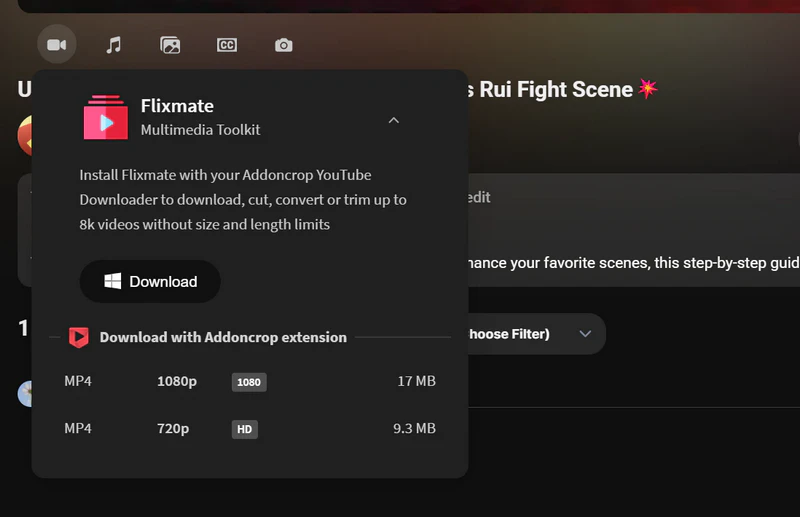
Click the Extensions icon in Chrome's top toolbar and select the YouTube video downloader extension.
Once the extension loads the video details, click MP4 1080p to start downloading.
Downr
Downr is not only an online downloader but also offers an extension, both of which allow users to download videos and audio files for free from YouTube, TikTok, Instagram Reels, and Facebook. Our team also conducted a product test on Downr, and you can read this review of Downr to learn more details.
PROS👍
1. It supports saving both videos and audio from YouTube and 1000+ sites.
2. 4K downloads are available for free.
CONS👎
1. It is only available for Chrome.
Best for: Downr is a dedicated Chrome YouTube downloader extension to download 4K video and audio files from YouTube and 1000+ sites.
How to Download YouTube Videos as MP3 with Downr Extension (Chrome Only)
Step 1: Install the Downr extension on Chrome
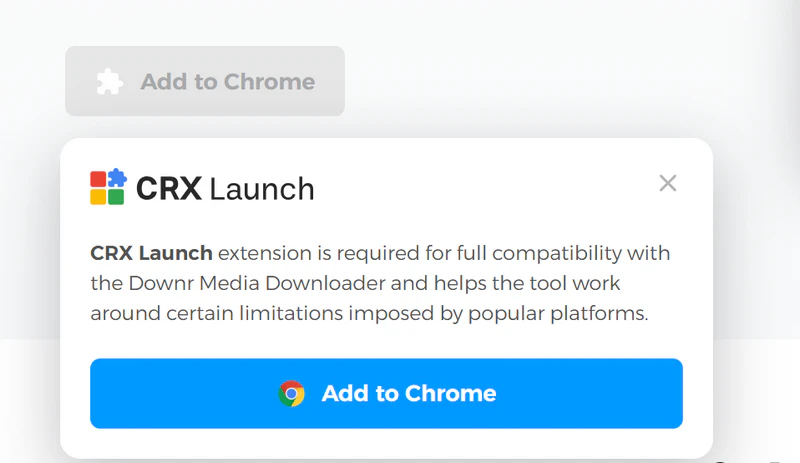
Open Chrome and go to the Downr extension site, then click "Add to Chrome" to install the "CRX Launch" Chrome extension. You may need to allow the permissions to continue.
Step 2: Play the YouTube video and start downloading
Browse the video you want to download on YouTube and play it.
Step 3: Start downloading
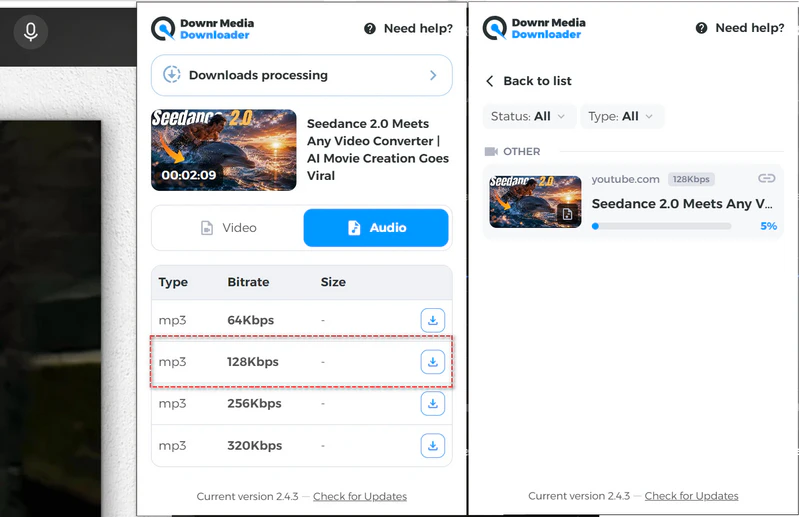
Open the video you want to download in Chrome and click the extension icon to locate "CRX Launch". Once the video playback is detected, click the Audio option and the download button beside the audio quality (128 kbps is enough), then click Downloads processing at the top to view the processing list.
Part 3: Best YouTube Download Extension for Edge: What Still Works?
Finding a reliable YouTube downloader extension for Edge is not as straightforward as it may seem. In my latest testing, I found that some Chrome-compatible extensions, including Addoncrop and Tubly, can also work with Microsoft Edge. Since Edge is based on Chromium, several Chrome YouTube downloader extensions may be installed or used in Edge, depending on the extension's installation method.
For now, if Edge is your main browser, the Chrome-compatible options above (Addoncrop and Tubly) are still worth checking. I will continue testing Edge-specific YouTube downloader extensions and update this section as I find reliable options.
Editor's note
Browser extensions may stop working after browser updates, YouTube changes, or broken download links. If you prefer a more stable downloading workflow, you can also use Any Video Converter as a desktop alternative.
Part 4: Best YouTube Downloader Extension for Firefox
Firefox is a better place to look for YouTube downloader extensions than Chrome and Edge, mainly because more Firefox add-ons still clearly support YouTube video downloads. While many Chrome Web Store video downloaders exclude YouTube due to store policy restrictions, some Firefox add-ons continue to offer direct YouTube download options, including MP4, MP3, 720p, and 1080p.
That said, Firefox downloader extensions can still stop working after YouTube updates or add-on changes, so I tested some options below based on availability, download formats, video quality, ease of use, and overall reliability, and found that Easy Youtube Video Downloader Express is still working and trustworthy in this list.
Easy Youtube Video Downloader Express
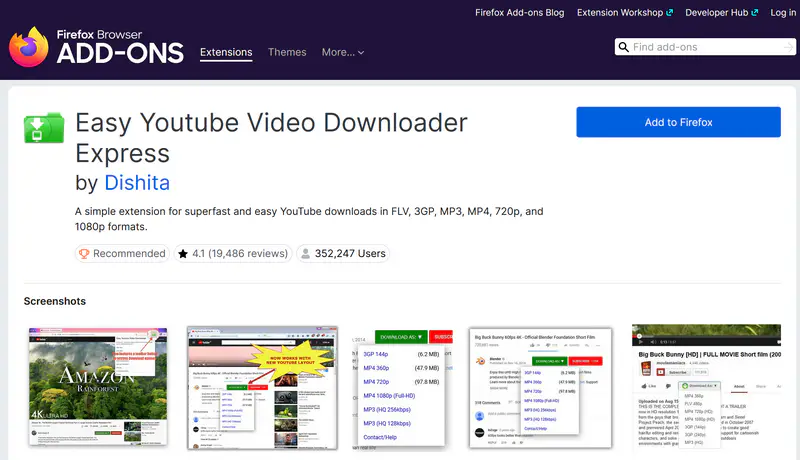
Easy Youtube Video Downloader Express is one of the top-rated add-ons for Firefox. It is much easier to install than most Chrome-based alternatives, and in my testing, it also supports full HD YouTube downloads in 1080p.
PROS👍
1. Offers true 1080p full HD downloads.
2. Supports MP3 downloads at 256 kbps or 128 kbps.
3. Easy to install and straightforward to use.
CONS👎
Free users may encounter download limits, though the exact limit is not clearly listed on the official add-on page.
Best for: Users looking for one of the easiest YouTube downloader extensions for saving videos in high-quality MP4 and MP3 formats.
How to Download YouTube Videos Directly in Firefox with an Extension
Step 1: Add the YouTube downloader extension to Firefox
Go to the Firefox Add-ons page for Easy Youtube Video Downloader Express and click “Add to Firefox.” When the confirmation prompt appears, click “Add” to install the extension.
Step 2: Download a YouTube video directly in Firefox
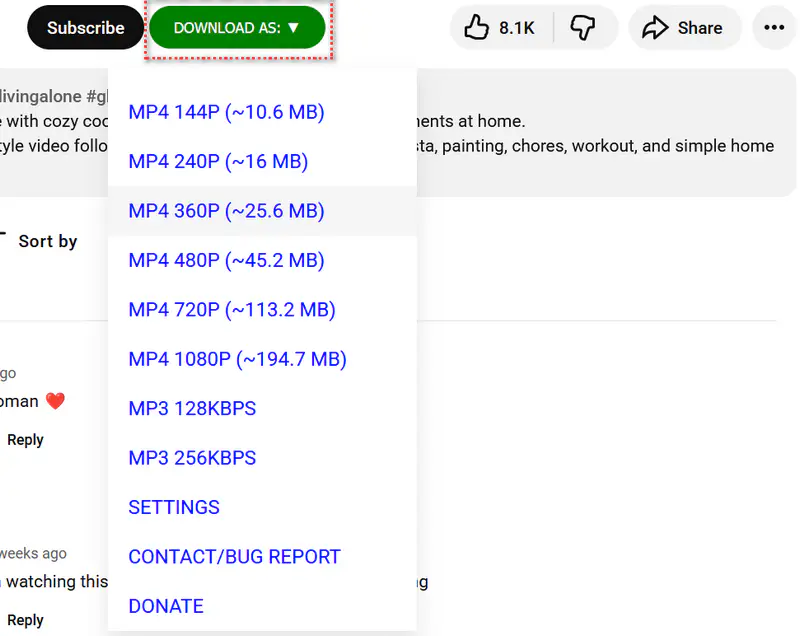
Open the YouTube video you want to save. Under the video player, you will see a green "DOWNLOAD AS:" button. Click it to choose whether to download the video as MP4 or MP3. In my testing, this Firefox add-on also supports 1080p downloads.
Part 5: Why Is My YouTube Downloader Extension Not Working?
You may have noticed that some YouTube downloader extensions stop working from time to time, much like online YouTube downloader sites. Sometimes they seem to disappear or break overnight. Based on my testing, there are several common reasons why this happens.
1. The required permissions were not granted
Some extensions, especially Chrome-based ones, need certain browser permissions to function properly. If those permissions are not granted, the extension may not work as expected.
2. The extension is outdated
If the extension has not been updated for a while, it may stop working after changes on YouTube's side. Make sure you are using the latest version.
3. Some types of content are not supported
In actual use, DRM-protected, private, and age-restricted content is often much harder for browser extensions to process. Some YouTube videos are protected by DRM, while private or age-restricted videos may also fail to load properly in simple extension-based tools.
4. Chrome Web Store policies limit what extensions can do
Because of Google, YouTube, and Chrome Web Store policies, many Chromium-based extensions openly state that they do not work on YouTube itself or on YouTube videos embedded on other websites. That is one reason Firefox-based options sometimes work better.
5. YouTube changes its site frequently
YouTube regularly updates its site structure and playback system, which can break third-party downloader extensions without warning. That is why an extension that worked yesterday may suddenly stop working today.
As always, only download content you own or are authorized to use, and make sure your use complies with YouTube's Terms of Service.
Part 6: Best Alternative to Browser Extensions for Bulk Downloading YouTube Videos in 4K Quality
For users who need a more stable YouTube downloader extension alternative, a desktop YouTube downloader is a better long-term choice. Any Video Converter lets you download YouTube videos, save videos as MP4 or MKV, extract YouTube audio as MP3, and download multiple videos more efficiently. It also supports video and audio downloads from 1,000+ websites, including YouTube, TikTok, Instagram, Facebook, X/Twitter, Dailymotion, and Vimeo. With support for MP4, MKV, MP3, WAV, FLAC, and quality options up to 1080p, 2K, 4K, and 8K, Any Video Converter offers a more flexible and reliable way to save online videos, with HDR content, Dolby audio, multiple subtitles, and audio tracks preserved if available.
Key Features of Any Video Converter
- Download video, audio, playlist, and channel from 1000+ sites
- Download YouTube videos in 1080p, 2K, 4K, or 8K when available
- Save videos as MP4/MKV or extract audio as MP3/WAV/FLAC
- Download full playlists or select only the videos you need
- Choose video, audio, and subtitle tracks before downloading
- Save custom download settings as presets
Any Video Converter: Best Video Workflow Solution 2026 (ALL In One)
How to Download YouTube Videos in Bulk in 4K Without a Browser Extension
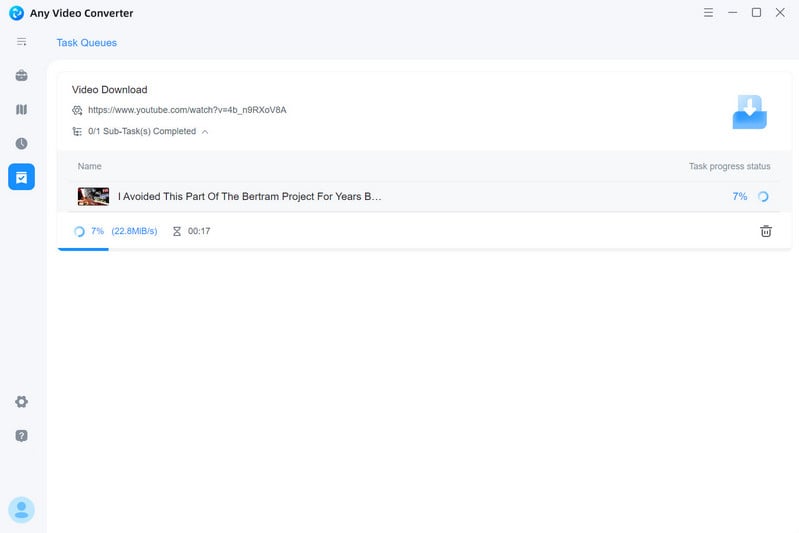
Any Video Converter lets free users download YouTube videos at the best available quality, including 2K, 4K, and even 8K when supported, without limits on download count or video length. Let's take a look at how to download YouTube videos in the best quality for free with Any Video Converter.
Step 1: Install Any Video Converter
Simply click the download button below to get the installer for Any Video Converter, tailored to your computer's operating system (Windows 11, 10 & macOS 12 or above).
Once the download is complete, simply click the setup or zip file and follow the installation guidelines to install Any Video Converter.
Step 2: Open the "Video Download" Tool
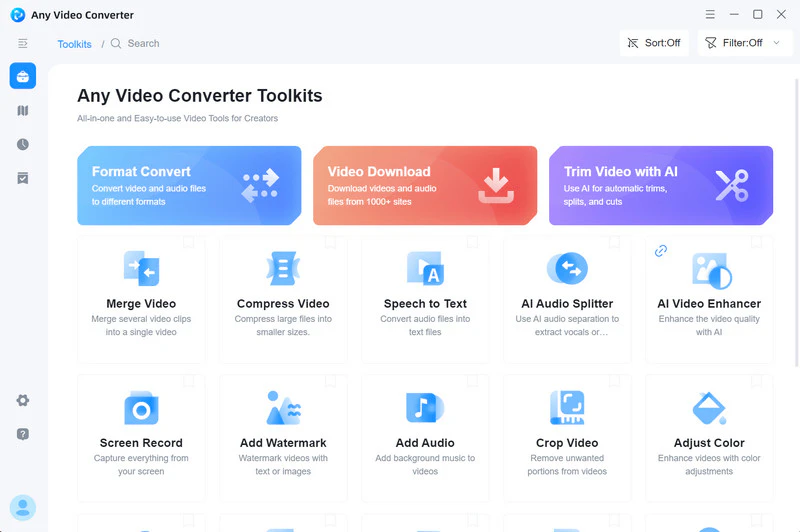
Any Video Converter offers a variety of powerful tools, including video, audio, and AI features. To start downloading your favorite content, simply select the "Video Download" tool from the toolkit list.
Step 3: Copy the Link of the Video, Playlist, or Channel
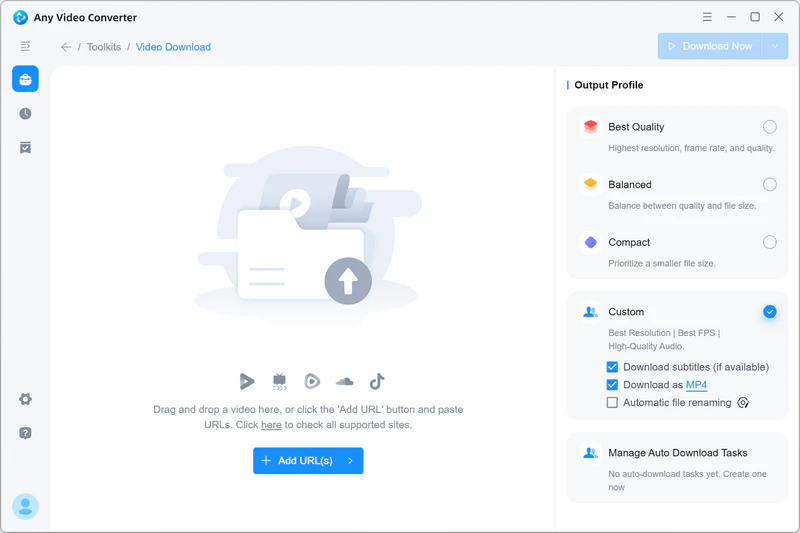
Find the videos, playlists, or channels you want to download from YouTube, then copy its link from the top address bar. You can copy multiple links at once.
Step 4: Choose the Download Quality
Once you've copied the video link to your clipboard, Any Video Converter will automatically start analyzing the link.
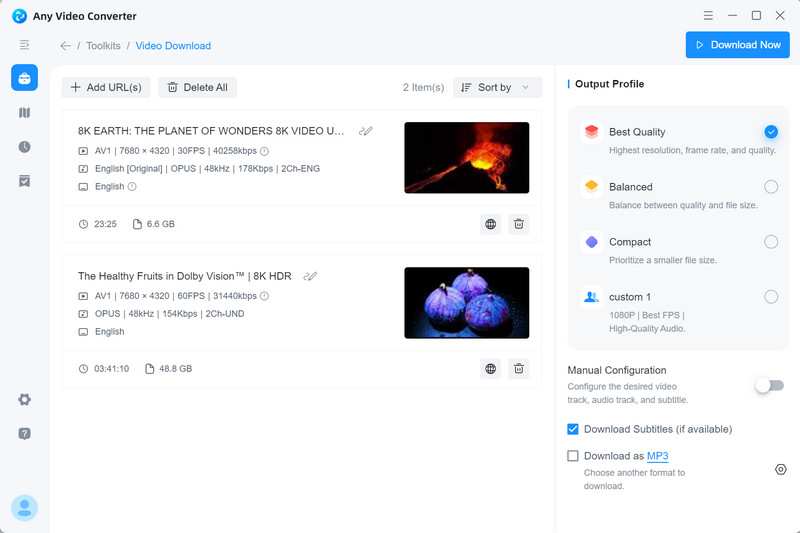
Once the analysis is complete, head to the top-right panel and select "Best Quality" under the output profile. This ensures that Any Video Converter downloads the video in the best quality, preserving the highest resolution, bitrate, and FPS exactly as they appear in the source video.
Step 5: Start Downloading YouTube Videos
Click the "Download Now" button to start downloading YouTube videos at the best quality.
FAQs About YouTube Downloader Extensions
Is there a YouTube downloader extension for Chrome?
Yes, some YouTube downloader extensions, such as Tubly and Addoncrop, still work with Chrome in my latest testing. However, Chrome users should know that many Chrome video downloader extensions are either unavailable, removed from the Chrome Web Store, or unable to download videos from YouTube directly because of YouTube and Chrome Web Store restrictions.
If your YouTube downloader Chrome extension stops working, you can try a Firefox YouTube downloader add-on, check a Chrome-compatible extension installed outside the Chrome Web Store, or use a desktop YouTube downloader like Any Video Converter for a more stable workflow.
Is a YouTube downloader extension safe to use?
A YouTube downloader extension can be safe, but it depends on where you download it from, what permissions it asks for, and how it behaves. In my testing, the extensions reviewed in this guide did not show obvious malware warnings, forced ads, or suspicious download behavior.
Still, you should be careful before installing. Check the official website or add-on store page, read recent user reviews, review the requested permissions, and avoid extensions that ask for unnecessary access to your browsing data, account information, or unrelated websites.
Are YouTube download extensions legal?
A YouTube download extension is not automatically illegal, but downloading YouTube videos may violate YouTube's Terms of Service.
To stay safe, only download videos you own, copyright-free content, Creative Commons content, or videos you have permission to save. Avoid downloading copyrighted movies, music videos, private videos, member-only videos, or DRM-protected content without authorization.
What is the best YouTube downloader extension?
In my latest testing, Firefox YouTube downloader add-ons offered a better overall experience than many Chrome and Edge options. Some Firefox add-ons are easier to install, support direct YouTube downloads, and provide common output options such as MP4, MP3, 720p, 1080p, and even 4K.
For Chrome and Edge, the available options are more limited. Some still work, but they may require manual installation, extra permissions, or third-party installation files. If you need 4K downloads, playlist downloads, batch downloading, or more stable long-term support, a desktop YouTube downloader is usually a better choice.
Why can't many Chrome extensions download YouTube videos?
Many Chrome video downloader extensions cannot download YouTube videos because of YouTube and Chrome Web Store restrictions. Some extensions may work on other video websites, but disable YouTube downloading completely.
If a YouTube downloader extension is not working, you can also check these common causes:
- The extension has not been updated to support the latest YouTube changes.
- Required browser permissions were not granted.
- The video is private, age-restricted, region-restricted, or DRM-protected.
- The extension was removed, disabled, or blocked by the browser.
- The download option is hidden under the extension icon instead of the YouTube player.
If the problem continues, try another browser, switch to a Firefox add-on, or use a desktop YouTube downloader instead.
How do I download YouTube videos as MP4 with an extension?
You can usually download YouTube videos as MP4 with a browser extension by following these steps:
Step 1: Choose a working YouTube downloader extension
Pick a YouTube download extension based on your browser. Firefox add-ons are often easier to install, while some Chrome and Edge options may require manual installation and more browser permissions.
Step 2: Add the extension to your browser
Install the extension in Chrome, Edge, or Firefox. If the extension asks for permissions, review them carefully before approving.
Step 3: Open a YouTube video you want to save
Go to YouTube and play the video you want to download.
Step 4: Choose MP4 and start downloading
In most cases, the download button or format menu appears under the video player. Choose MP4 as the output format, select the available quality, and click the download button. If you do not see the button, click the extension icon in the browser toolbar to load the download options.
How do I convert YouTube to MP3 with an extension?
You can convert YouTube to MP3 with some browser extensions if they support audio extraction. Here is the general process:
Step 1: Install a YouTube to MP3 extension
Choose a browser extension that supports MP3 audio downloads. Some YouTube downloader extensions only support video formats, so check the supported output options first.
Step 2: Open the YouTube video
Go to YouTube and play the video you want to convert to MP3.
Step 3: Choose MP3 from the download menu
Click the download button under the video player or open the extension from the browser toolbar. Select MP3 as the output format and choose the available audio quality.
Step 4: Start the MP3 download
Click the download or convert button. The extension will extract the audio from the YouTube video and save it as an MP3 file.
Can I download YouTube playlists with an extension?
Most YouTube download extensions are designed for single-video downloads, not full playlist downloads. In my testing, the reviewed browser extensions did not provide reliable playlist downloading or bulk YouTube download support.
If you want to download an entire YouTube playlist, a channel, or multiple videos at once, a desktop YouTube downloader such as Any Video Converter is a better choice. It allows you to download playlists or select specific videos without saving them one by one in the browser.
Is a desktop YouTube downloader better than a browser extension?
It depends on what you need. A browser extension is more convenient for quick, occasional downloads because it works directly inside Chrome, Firefox, or Edge and does not require installing a full desktop program.
However, a desktop YouTube downloader is usually better for stability, download success rate, advanced format options, playlist downloads, bulk downloading, and long-term use. If you need to download YouTube videos in 1080p, 4K, or 8K, extract audio as MP3, save subtitles, or download multiple videos at once, desktop software like Any Video Converter is generally more suitable than a browser extension.
What is the best alternative to a YouTube downloader extension?
If browser extensions are unavailable, unstable, or unable to download YouTube videos in the quality you need, Any Video Converter is a reliable desktop alternative. It supports YouTube video downloads, MP3 audio extraction, playlist downloads, bulk downloads, subtitles, and quality options up to 4K or 8K when available.
Conclusion
In recent years, YouTube downloader extensions have faced increasing restrictions due to YouTube's updated terms of use. Previously, we could easily list up to 10 working extensions, but now, very few of them still function as expected. To ensure a stable and continuous video downloading experience, we highly recommend Any Video Converter as a reliable alternative.

Charlie Campbell | Content
Writer
Charlie Campbell is an experienced technical documentation writer with a background
in software development and a passion for emerging AI technologies. Dedicated to helping readers
stay ahead in the fast-paced digital landscape, he combines technical expertise with clear
communication to simplify complex topics and keep audiences informed on the latest advancements.




 We also Recommend