


Convert Video to MP4 Online | 100% Free & No Watermark
"Can I convert video files to MP4 online?" - Pablo Lema
Are you looking for an easy way to convert video to MP4 online? If so, this guide is just what you need! Here, we'll explain how to use a free video to MP4 converter and provide tips on getting the best conversion results. In addition, we'll answer any questions you may have about converting videos to MP4. Read on to learn more and start converting your videos into high-quality MP4 formats with ease!
- • Part 1: Why Convert Video to MP4 Online?
- • Part 2: [One-Stop Solution] Convert Local and Online Video in One Stop
- • Part 3: How to Convert Local Videos to MP4 with Online Converters for Free
- • Part 4: [Online Video to MP4 Converters] How to Convert Online Videos to MP4 for Free
- • Part 5: FAQ About Converting Video to MP4 Online
Part 1: Why Convert Video to MP4 Online?
Why MP4? In today's digital age,
Why convert video to MP4 online?
Part 2: Convert Local and Online Video to MP4 in One Stop
It's unsafe. Once you upload personal information, family videos, trade secrets, or unpublished content to an unreliable server, this content could be viewed, stored, or even misused by the service provider. You must be aware that some websites bundle junk software, adware, or even viruses, all of which pose potential dangers.
So why not choose Any Video Converter, a secure software to avoid any trouble?

What can Any Video Converter do for you?
Why is it guaranteed to be safe? Any Video Converter is legitimate commercial software developed by Anvsoft Inc., with a 23-year operating history. During this time, it has earned the genuine praise and trust of millions of users worldwide. The official website provides a completely clean installation package with no hidden bundled software.
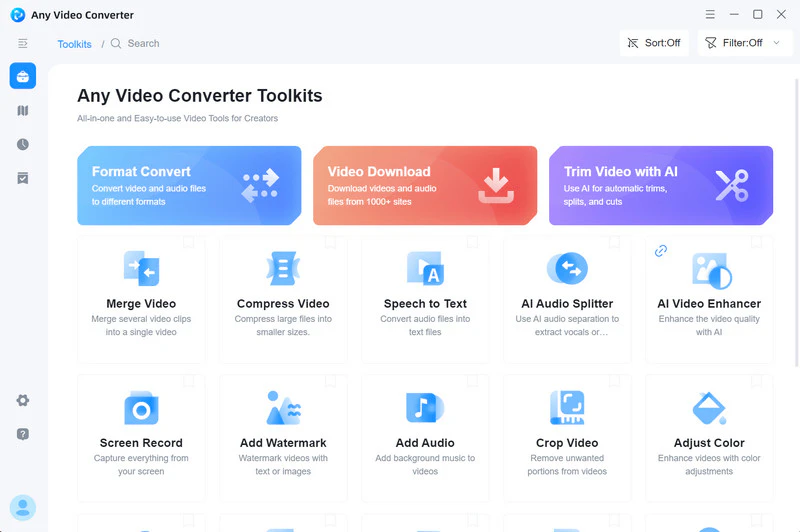
Install Any Video Converter
🚨 The installation package is completely clean, and the installation process takes no more than one minute.
Locate the "Format Convert" Tool
(The steps here take converting local videos to MP4 as an example.)
Now hit the "+Add Media File(s)" button to add one or multiple videos to this program.
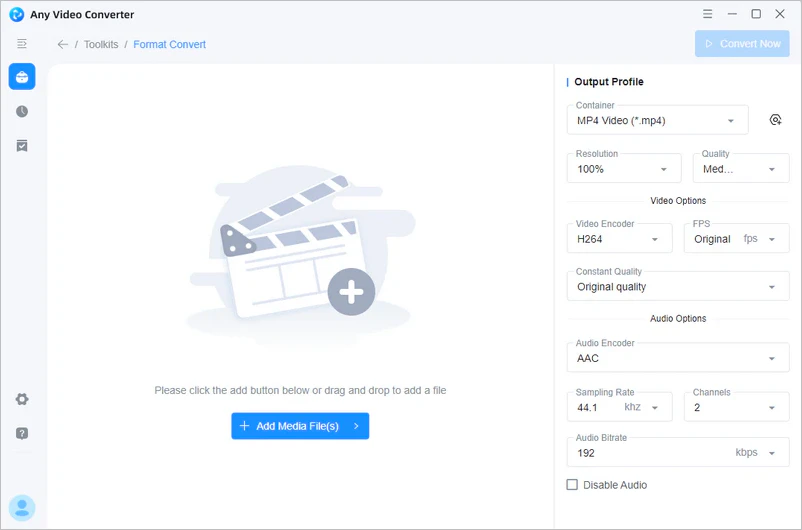
Select MP4 Format
Just click on the "Container" option, and you can select the MP4 video format. You can also flexibly adjust parameters such as encoder and bitrate in "Video Options" and "Audio Options".
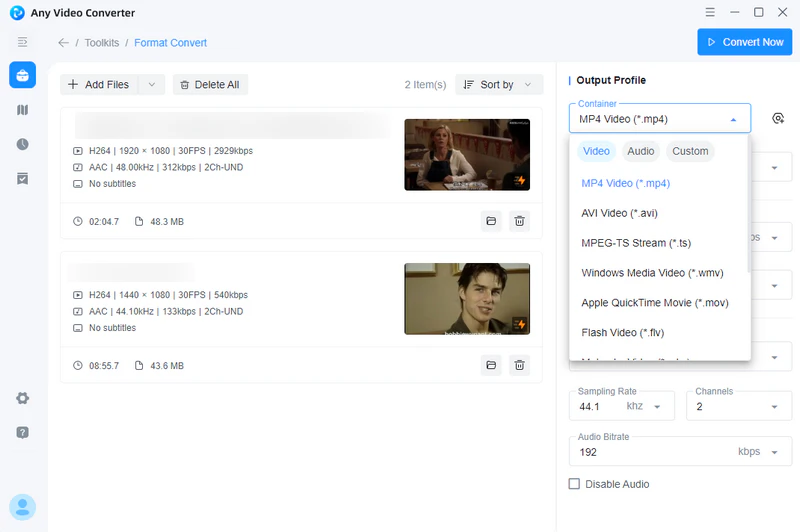
Convert Videos to MP4 for Free
Once all the settings are done, click on the "Convert Now" button to convert local videos to MP4.
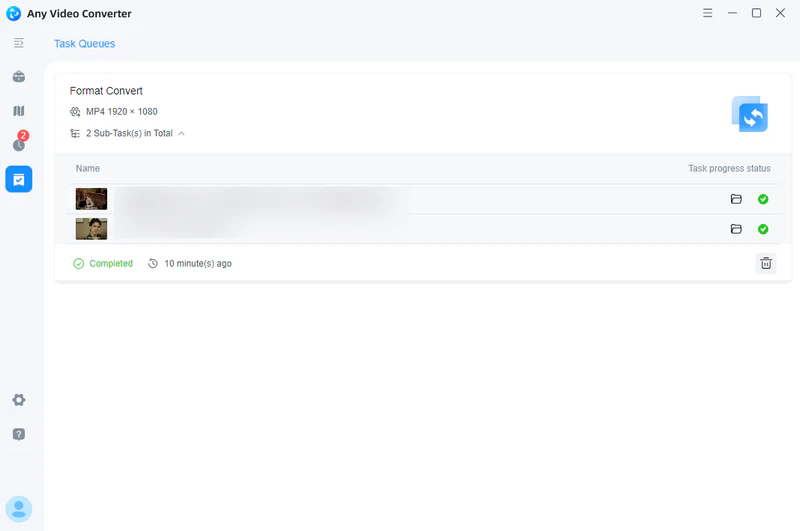
 How to Convert
Online Video to MP4 >>
How to Convert
Online Video to MP4 >>
Part 3: How to Convert Local Videos to MP4 with Online Converters for Free
🚨
1. HDconvert
🔗 Website: https://hdconvert.com/
📝 Brief introduction: No file size limits and batch conversion; you can easily upload and convert videos larger than 1 GB to MP4. HDconvert has a built-in renewable uploader, so even if your network connection is interrupted, you can resume conversion from where you left off.
⚙️ Compatible Devices: iPhone, Android, Mac, PC, Windows, Tablet.
 Limitation:
- Video quality is limited to 720P.
- Advanced options require a premium account.
- The final project may contain a watermark.
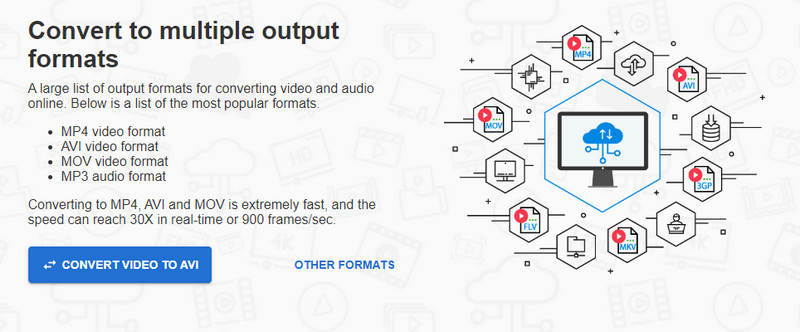
❓ How to use:
Step 1: Open HDconvert online video converter, and hit "Convert Video".
Step 2: Add one or more video files and choose MP4 as the target video format to proceed.
Step 3: Click on the "Next" button to continue. Here, you are able to select the output quality, such as 720P (free), 1080P (premium), 4K (premium).
Step 4: After the conversion process is completed, simply download the video to your device immediately.
2. Online Convert
🔗 Website: https://www.online-convert.com/
📝 Brief introduction: Online Convert can convert MPEG-2, MKV, AVI, 3GP, and over 50 formats to MP4 for free. It provides additional features: change video size, cut video, rotate video, mirror video, and more. All video settings and additional features are free.
🪙 Credit: A visitor account gets 16 credits. A registered account gets 66 credits.
Limitation:
- One credit is deducted for every 30 seconds of processing.
- You need to make a purchase after you run out of credits.
- Batch processing and conversion of long videos is time-consuming.
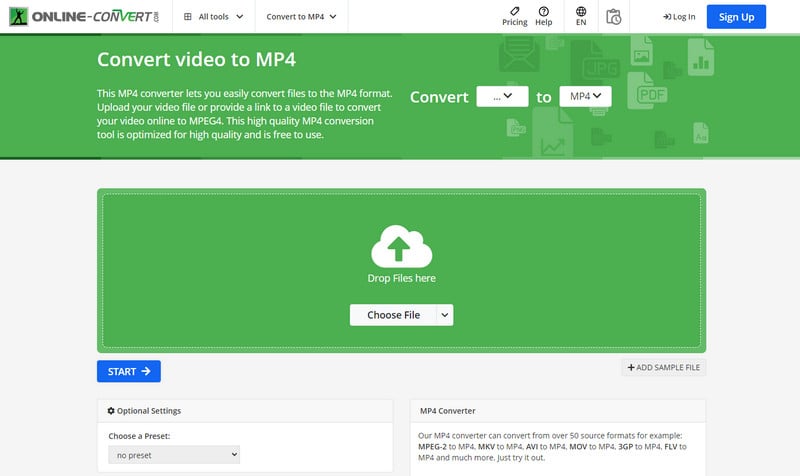
❓ How to use:
Step 1: Open Online Convert and upload your video files.
Step 2: Change the video size, bitrate, codec, and more in the optional settings.
Step 3: Click the "Start" button at the bottom to begin converting videos to MP4 online.
3. Aconvert
🔗 Website: https://www.aconvert.com/video/
📝 Brief introduction: Aconvert supports a wide range of conversion types, basically covering all common file categories: PDF, Word, Excel, JPG, PNG, SVG, and more. Besides converting videos to MP4 online, it also provides accompanying video tools: cut, merge, compress, extract, and more.
🌐 Online storage: Save to Dropbox, Google Drive, or OneDrive.
Limitation:
- File size limited to 200MB.
- Popup Ads.
- Slow conversion speed.
- No batch conversion.
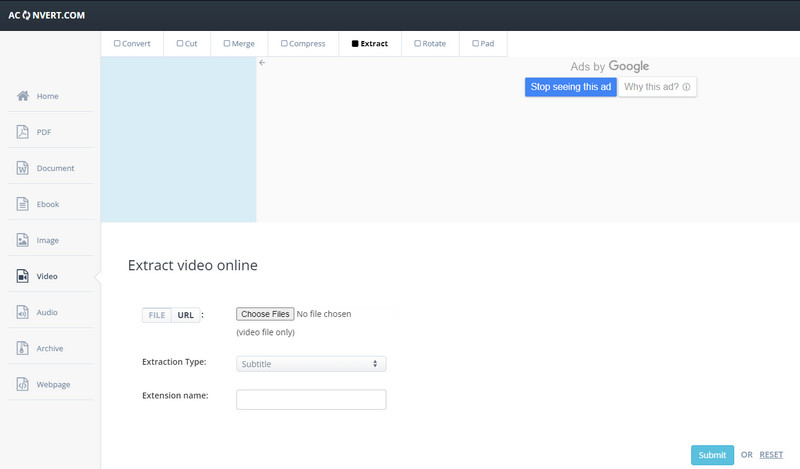
❓ How to use:
Step 1: Click the "Choose Files" button to select a local video from your computer.
Step 2: In the target format drop-down menu, select "MP4" and adjust the video parameters as needed.
Step 3: Click the "Convert Now" button, wait for the conversion to complete, and then download the new file.
Part 4: [Online Video to MP4 Converters] How to Convert Online Videos to MP4 for Free
🚨
1. MP3ify
🔗 Website: https://www.mp3ify.com/
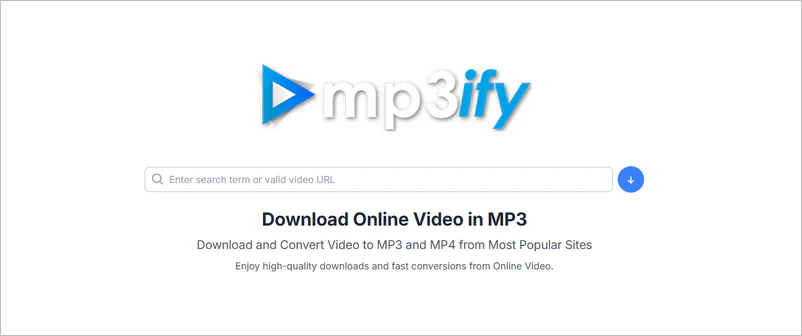
📝 Brief introduction: MP3ify is an online video converter whose key feature is to convert clips to MP4 or MP3 format. The website offers a video search engine where you can enter keywords to locate videos and convert videos to MP4 online directly.
🔖 Recommendation for you: Is MP3ify Safe?
Limitation:
- You can only convert one video for free each day.
- Unable to download 4K or higher quality.
- It can only parse YouTube URLs.
❓ How to use:
Step 1: Enter keywords or a valid video URL in the search box provided on the website.
Step 2: Click the MP4 option and select the resolution of the video you want to download.
Step 3: After conversion, the page will usually provide a download link. Clicking it will save the MP4 file to your local device.
2. SaveTheVideo.com
🔗 Website: https://www.savethevideo.com/
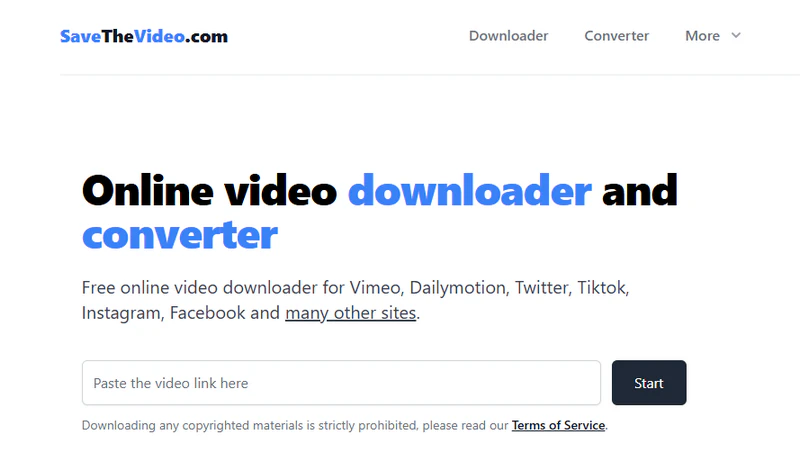
📝 Brief introduction: SaveTheVideo online video converter supports downloading videos from numerous websites such as Vimeo, Dailymotion, Twitter (X), TikTok, Instagram, and Facebook. It can convert videos online to MP4, MP3, AAC, WebM, 3GP, OGG, M4A, and other formats. It also provides functions for merging video, cutting video clips, and converting subtitles.
Limitation:
- YouTube content is not supported.
- There will be a redirect ad page.
- Download and conversion speeds are very slow.
❓ How to use:
Step 1: Visit the website and paste the video link into the input box.
Step 2: Click the "Start" button (a new ad page may open; simply close the new page) and wait for the parsing to complete.
Step 3: Select the MP4 format and convert the video to MP4 online.
3. DeVoice
🔗 Website: https://devoice.io/youtube-to-mp4-converter-free
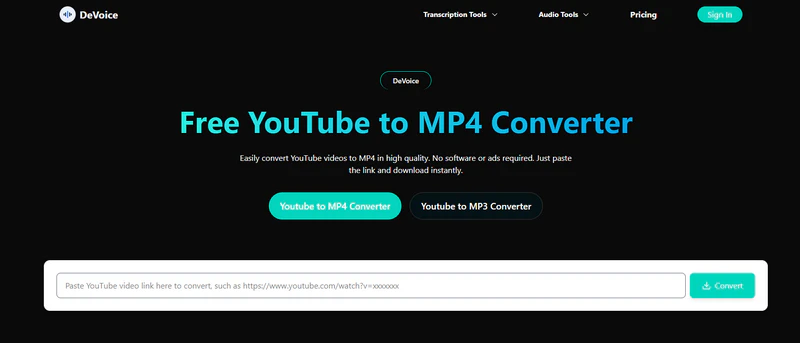
📝 Brief introduction: DeVoice typically converts videos to MP4 online in just a few seconds, and the resulting MP4 files are watermark-free. There are no restrictions, no registration required, and no hidden fees.
Limitation:
- You can only download 360P videos with audio.
- It can only download YouTube content.
❓ How to use:
Step 1: Find the video you want to convert on YouTube and copy its URL.
Step 2: Visit the DeVoice YouTube to MP4 converter page, paste the link into the input box, and click "Convert".
Step 3: Wait a moment, select MP4 format, and the file will be downloaded to your local device.
Next up: Cobalt.tools online MP4 downloader and its alternatives >>
Part 5: FAQ About Converting Video to MP4 Online
Q1: Are these online video to MP4 converters really safe?
The security of online MP4 video converters varies greatly, and there are clear risks involved. Careful verification is required before using them. Never click on any irrelevant content on these online video to MP4 converters.
Q2: What's the best video to MP4 converter?
Any Video Converter is undoubtedly one of the best video to MP4 converters.
- The free version is powerful: Its free version already meets the daily conversion needs, with no malicious ads or bundled software.
- Universal format conversion: It not only flexibly converts different video formats to MP4 but also converts audio formats and supports downloading videos from websites.
- High-quality output: It provides rich output presets, allowing flexible adjustment of video resolution, bitrate, and frame rate, maintaining video quality as much as possible while ensuring compatibility.
- Fast conversion speed: Supports GPU acceleration, achieving conversion speeds up to 130x faster.
- Additional editing tools: Built-in practical tools such as AI video enhancer, trimmer, and compressor meet basic processing needs.
Q3: Can you convert an MOV video to an MP4 video?
Step 1: Open Any Video Converter and choose the "Format Convert" tool.
Step 2: Upload your MOV video files and select MP4 format. For better compatibility, we recommend choosing H264 encoding.
Step 3: Click on the "Convert Now" button to convert MOV videos to MP4.
Q4: How do you convert video to MP4 with VLC?
Step 1: Open the program after installing VLC media player.
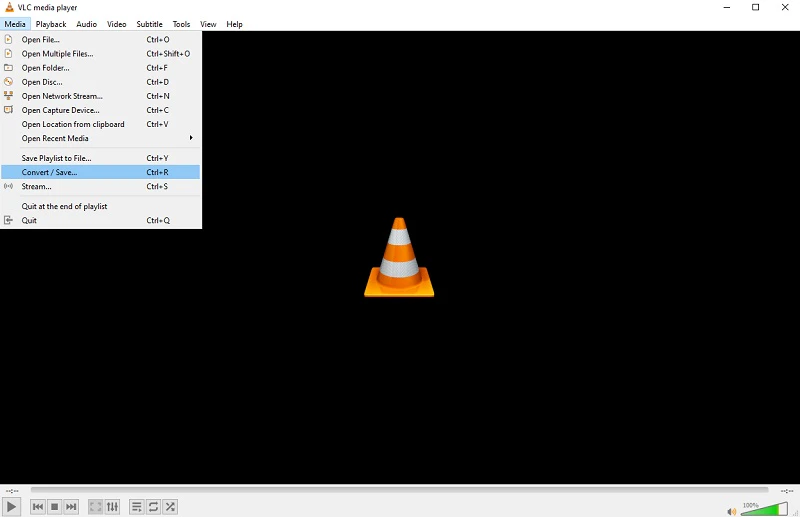
Step 2: Click the top menu "Media" → "Convert/Save…". Click "Add" to select your video file, and then click "Convert/Save".
Step 3: In the "Settings" interface, select "Video - H.264 + MP3 (MP4)" from the drop-down menu. Then select the output location and file name.
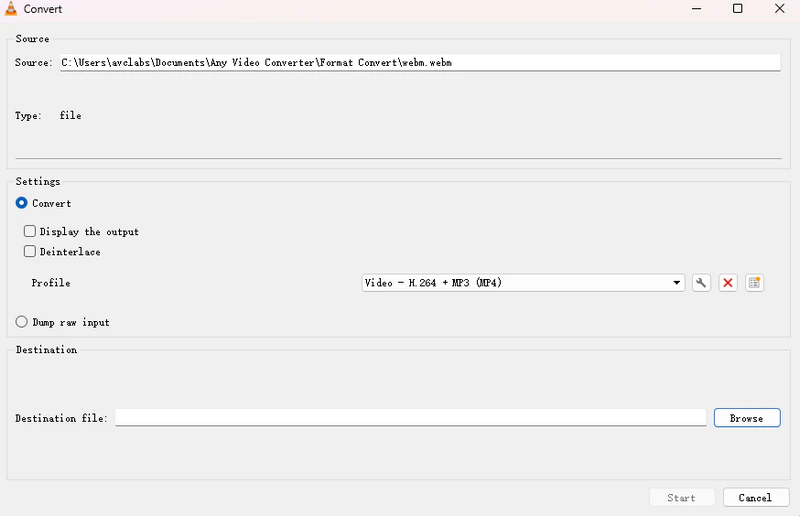
Step 4: Click "Start" and wait for the conversion to complete.
Final Thoughts
In conclusion, while online video to MP4 converters seem convenient, they carry numerous risks, including privacy concerns, file restrictions, and ad interference. In contrast, Any Video Converter, a trustworthy local conversion software, is not only completely free and watermark-free but also boasts comprehensive features like high efficiency, stability, and high-quality output.
If you truly value the security and quality of your video content, Any Video Converter is undoubtedly a wiser and more efficient choice than online video to MP4 converters. So why not try this free and more reliable MP4 converter?


Besty Smith | Content Writer
Besty Smith is a talented and insightful content creator with a keen interest and passion for software programs. She focuses on in-depth research and hands-on experience with various types of software, providing readers with in-depth and inspiring content through precise writing. With her keen insight into the software industry, Besty is committed to helping readers keep abreast of the latest industry trends so that they can stay competitive in the digital age.