


What is Constant Quality?
It is a quality-based encoding mode. Instead of forcing a fixed bitrate, the encoder spends more or less data as needed to keep the video close to the chosen quality level.
Constant Quality is easier to understand if you stop treating it as a file-size setting in video conversion. It is more like a quality target for the encoder. Simple scenes may need less data to look good, while complex scenes like high motion, shadows, trees, water, noise, or small text may need more.
In x264 or x265 encoding, that target is usually controlled by an RF or CRF value. A lower value keeps more detail and usually comes with a larger file. A higher value compresses more with a smaller file, and may make fine details look softer or even lost. The tricky part is knowing where that trade-off starts to matter.
To make the choice easier, this guide explains how RF and CRF values work, when Constant Quality makes sense, and which settings to try for common video conversion needs.
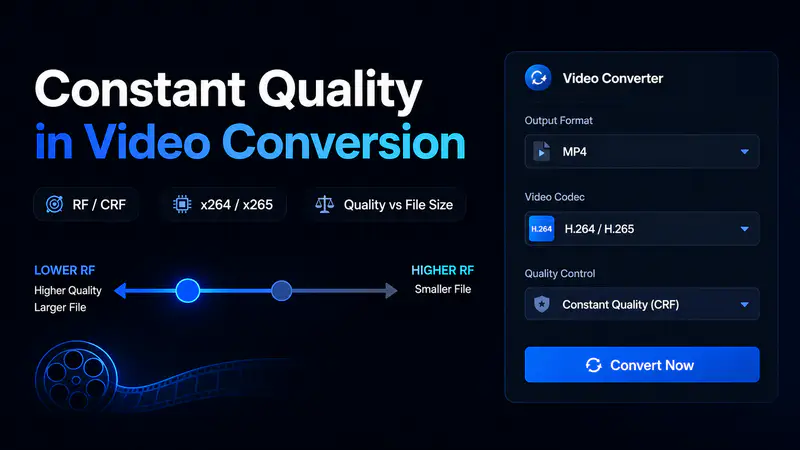
It is a quality-based encoding mode. Instead of forcing a fixed bitrate, the encoder spends more or less data as needed to keep the video close to the chosen quality level.
Usually, yes, but lower is not always worth it. It can keep more detail, but after a point the file may grow a lot with little visible improvement.
Try RF 22-24 for x264 or RF 23-25 for x265, then check a short sample and adjust as needed.
No, Constant Quality does not mean lossless. It can look just close to the source, but conversion is a re-encoding process and still compresses the video again.
Use Average Bitrate when the output needs to stay close to a target file size, such as for email, Discord, uploads, or storage.
It can, but not always in the same way. The final size depends on the video content, encoder, resolution, and RF or CRF value.
You may think of RF or CRF as a detail dial. Lower values tell the encoder to keep more visual detail; higher values allow stronger or aggressive compression. But RF is not a file-size button. Two videos can use the same RF value and still end up with very different sizes.
These ranges can be used as starting points, but not fixed rules:
| RF / CRF Range | Usually Means | Good Starting Point For |
| 18-20 | Very high quality, larger files | Important videos, archives, high-quality copies |
| 21-24 | Balanced quality and size | Most MP4 conversions |
| 25-28 | Smaller files, more compression | Sharing, mobile playback, storage saving |
| 29+ | Strong compression | Only when file size important than detail |
Use Any Video Converter to convert a short sample first. Choose MP4, keep the resolution the same as the source, and pick the Constant Quality option that matches your goal: better detail or smaller file size.
I ran two small tests. First, I changed RF values on the same 4K video. Then I used the same RF value on three different video types. The goal was to show what users often miss when they only look at one recommended number.
Test note: I used HandBrake because it allows manual RF adjustment for x264 and x265. The source was a 4K H.264 outdoor video at 30fps, about 237 MB and 36.24 Mbps. Output resolution and frame rate were kept the same as source. Note that the conversion time is included only as a reference; it varies by device, hardware acceleration, and system load.
| Setting | Output Size | Conversion Time | Video Bitrate | Visual Result | Best Use |
| x264 RF 18 | 290 MB | 1:16 | 44.04 Mbps | Very close to source, but larger than original | High-quality copy |
| x264 RF 23 | 173 MB | 1:10 | 26.04 Mbps | Close enough for normal playback; fine detail slightly reduced | Balanced MP4 conversion |
| x264 RF 28 | 102 MB | 1:02 | 14.94 Mbps | Much smaller; trees, grass, and distant details look softer | Sharing or storage saving |
| x265 RF 18 | 230 MB | 2:21 | 34.71 Mbps | Very close to source, slightly smaller than original | High-quality HEVC copy |
| x265 RF 23 | 120 MB | 1:59 | 17.78 Mbps | Much smaller, still acceptable for normal playback | Balanced HEVC conversion |
| x265 RF 28 | 64.5 MB | 1:48 | 9.14 Mbps | Smallest file, but fine textures are noticeably softer | Size saving |
x264 RF 18 looked very clean, but it was even larger than the source. x264 RF 23 was a better middle ground. x265 saved more space at practical settings, especially RF 23 and RF 28, but the same RF number did not mean the same visual result across x264 and x265.
For the second test, I encoded three clips with the same x264 RF 23 setting. This shows why Constant Quality can feel unpredictable if you expect it to hit a fixed size.
| Video Type | Source Details | Setting | Output Size | Bitrate | What Happened |
| Dark, low-motion clip | 1080p M2TS, dark scene, high source bitrate | x264 RF 23 | 7.51 MB | 1.93 Mbps | It became much smaller because the scene was simple and had little motion. |
| Vertical phone video | 1080x1920 MOV, plants, handheld movement, outdoor detail | x264 RF 23 | 38.57 MB | 10.61 Mbps | It stayed larger because trees, motion, and small details needed more data. |
| Screen recording | 1080p MP4, software UI, buttons, text, windows | x264 RF 23 | 7.29 MB | 1.80 Mbps | The file stayed small, but text and UI edges still needed a close check. |
RF does not tell the encoder how small the file should be. It tells the encoder how much quality to keep. A simple video may need very little data to meet that target, while videos with more motion, noise, or fine detail may need much more.
Use Constant Quality when visual quality matters more than a fixed file size. It gives the encoder a quality target and lets each video use as much data as it needs. This works well for regular MP4 conversion, mixed batches, archives, or videos where you do not know the right bitrate in advance.
Use Average Bitrate when the output needs to stay close to a target size. Bitrate is more like setting a data budget before conversion starts. It gives you better control over size, but the visible quality may vary from one scene to another.
There is no perfect value for every video. The best practice is to start with the goal, test a short sample, then adjust as needed.
| Use Case | Suggested Start | Why | What to Check |
| General MP4 conversion | x264 RF 22-24 | Good balance between quality and size | Motion, dark areas, fine textures |
| High-quality copy | x264 RF 18-21 | Keeps more visible detail, but can create much larger files | Whether the larger size is acceptable |
| Smaller file for sharing | x264 RF 25-28 | Stronger compression | Whether details look too soft |
| 4K or large videos | x265 RF 23-28 | HEVC can reduce size more efficiently | Playback compatibility and fine detail |
| Screen recordings | x264 RF 20-23 | Text and UI edges are easy to notice | Small text, button edges, window borders |
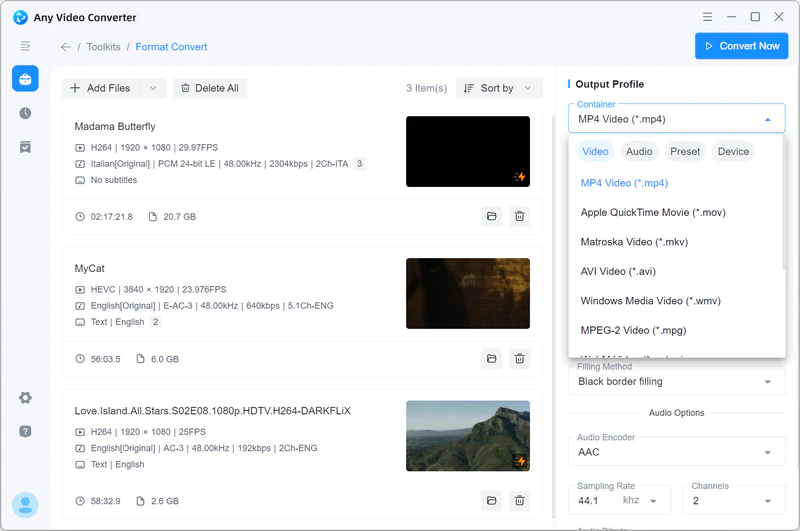
Unlike HandBrake and Shutter Encoder, Any Video Converter does not ask you to enter an exact RF or CRF value. It turns the idea into three easy to understand choices: Lossless, max file size, Original quality, and Min file size. The logic is the same as the tests above: keep more detail when quality matters, or compress more when file size matters.
Open the Format Convert tool in Any Video Converter and import your video. For a batch, test one short sample first instead of applying the same setting to every file immediately.
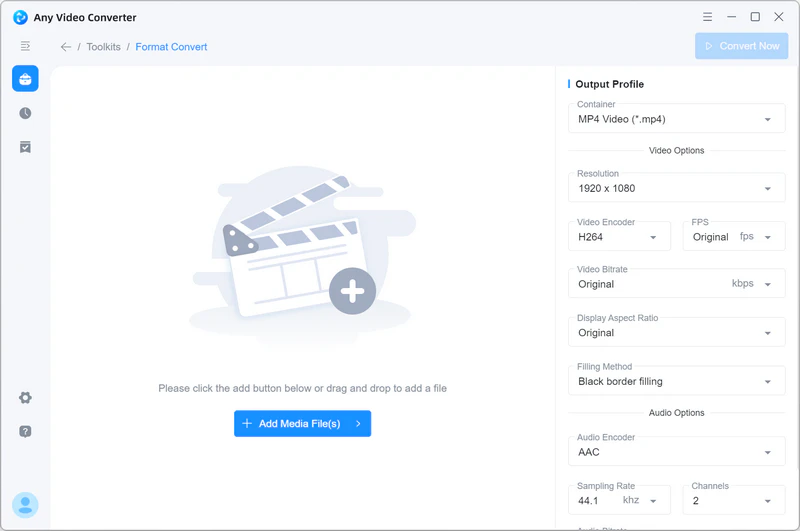
Choose MP4 with H.264 when compatibility matters most. Choose H.265 when you want smaller files for large or 4K videos and your target devices support HEVC playback.
To use Constant Quality, set Resolution to Percent first. Choose 100% if you want to keep the original resolution. Then select Lossless, max file size for the highest-quality option, Original quality for a balanced result, or Min file size when storage or upload limits matter more. The Lossless option still converts the video; it is not stream copy or remuxing.
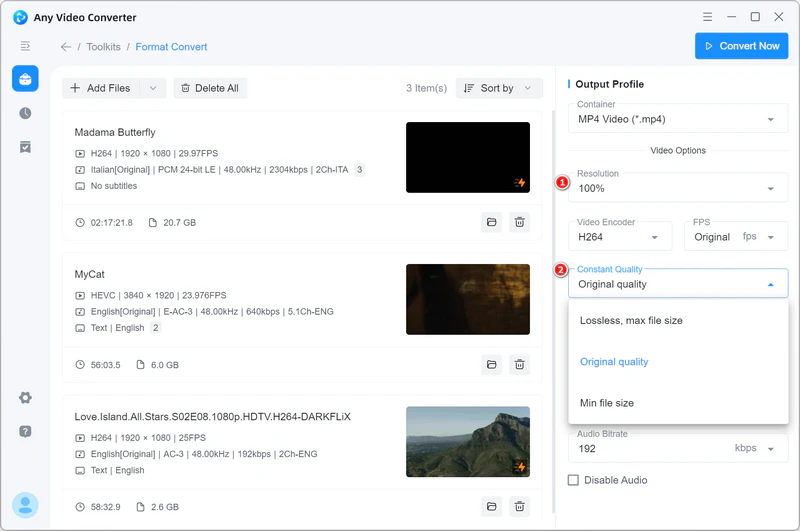
Leave FPS, audio encoder, audio bitrate, and sample rate the same or close to the source. This makes it easier to judge what Constant Quality actually changed.
Play the converted video and check small text, UI edges, trees, water, dark areas, and fast motion. If the file is too large, try Min file size. If it looks soft, move back to Original quality or Lossless, max file size.
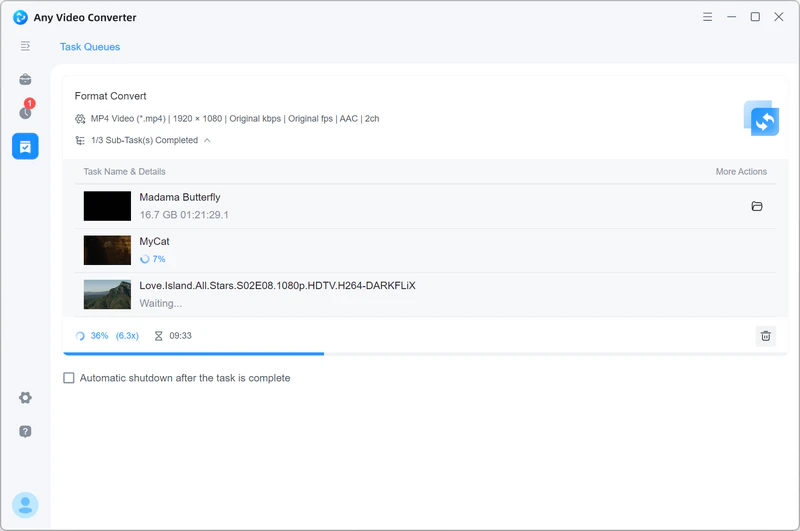
Constant Quality becomes easier once you know what it does not do. Watch out for these mistakes before converting a full video or a whole batch.
| Mistake | Better Choice |
| Thinking a higher RF means better quality | Use a lower RF or a higher quality level when you want to keep more detail. |
| Treating Lossless, max file size as no quality loss at all | It keeps as much visible quality as possible, but it still re-encodes the video. For container-only changes, Fast Conversion, also known as stream copy or remuxing, is usually faster when available. |
| Expecting the same RF to create the same file size | Treat RF as a quality target, not a file-size target. Simple videos may stay small, while videos with more motion, noise, or fine detail may need much more data. |
| Comparing x264 and x265 RF numbers directly | Use each encoder value as a separate starting point. The same number does not mean the same visual result across encoders. |
| Ignoring resolution or FPS changes | Keep resolution and FPS the same as or close to the source unless you intentionally want to resize or change motion |
| Re-encoding the same video repeatedly | Convert from the source when possible to avoid adding compression loss again and again. |
It means the video converter tries to keep a steady visual quality instead of forcing every second to use the same amount of data (average bitrate). Think of it as a quality target, not a file-size budget.
Not exactly. Constant Quality is the quality-based mode. CRF or RF is the number used to adjust that mode. Some converters call it CRF; others call it RF.
Usually, yes, but lower is not always better. It keeps more detail and usually creates a larger file, but it cannot make the video better than the source.
For x264, RF 23 is a practical starting point. In our 4K test, it reduced file size by about 26.6%. For x265, start around RF 23-25 when detail still matters. Move higher only when file size matters more.
Use Constant Quality when the video should look good. Use Average Bitrate when you need a more predictable output size, such as for email, Discord, upload limits, or storage limits.
Constant Quality is not about finding one perfect value for every video. It is about choosing the right balance between visible detail and file size.
Our tests show that lower RF values can keep more detail, but they may also create much larger files. The same RF setting can also behave differently depending on motion, texture, noise, resolution, and encoder. For most conversions, start with a balanced setting, test a short sample, and adjust from there.
In Any Video Converter, you do not need to enter RF or CRF numbers manually. Choose the Constant Quality option that matches your goal, keep the other settings close to the source, and check the output before converting a full batch.

Charlie Campbell is an experienced technical documentation writer with a background in software development and a passion for emerging AI technologies. Dedicated to helping readers stay ahead in the fast-paced digital landscape, he combines technical expertise with clear communication to simplify complex topics and keep audiences informed on the latest advancements.

